# Resize Boot2Docker disk volume
Boot2Docker VirtualBox VM is limited up to 20GB hard drive space allocated. The Boot2Docker package installer ships with a VMDK volume, which VirtualBox's native tools cannot resize.
We explain in following manual how to resize space.
Note: After that, when hard drive space will be too short and the drive is in VDI format, use this tutorial starting on GParted for resizing /sd1 to new size define in VirtualBox interface for hard drives.
# Operation
- Stop the Docker virtual machine
docker-machine stop default
- In order to resize the Boot2Docker disk volume, first clone a VDI volume from the default VMDK volume. Launch the VirtualBox application.
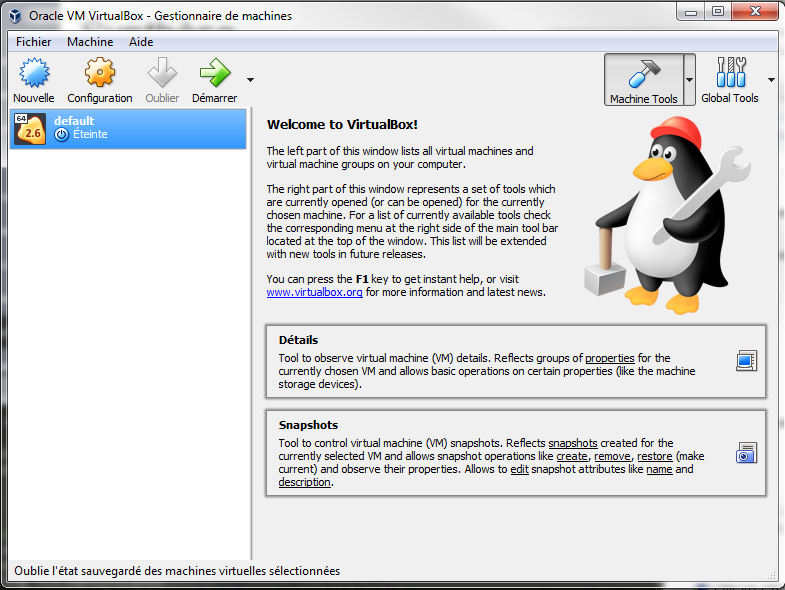
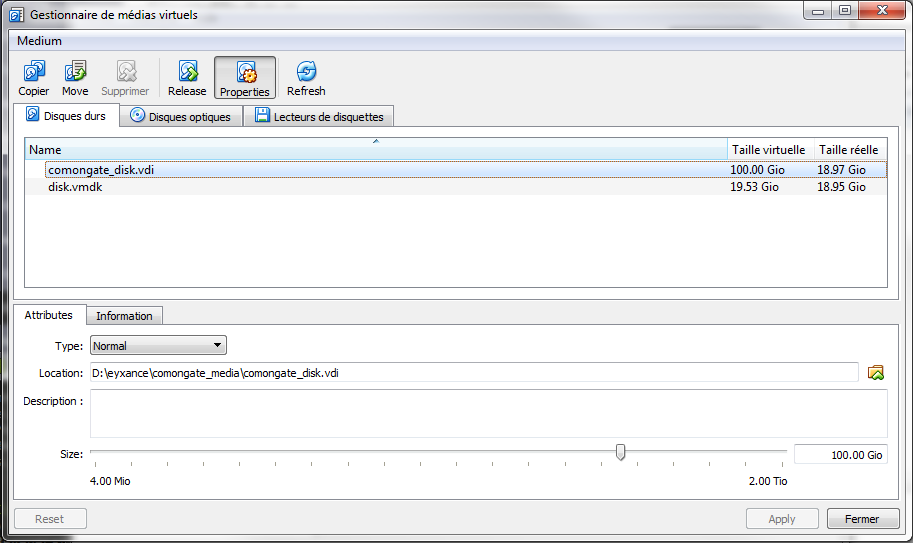
- Click on "File>Virtual Media Manager" and "Copy" button.
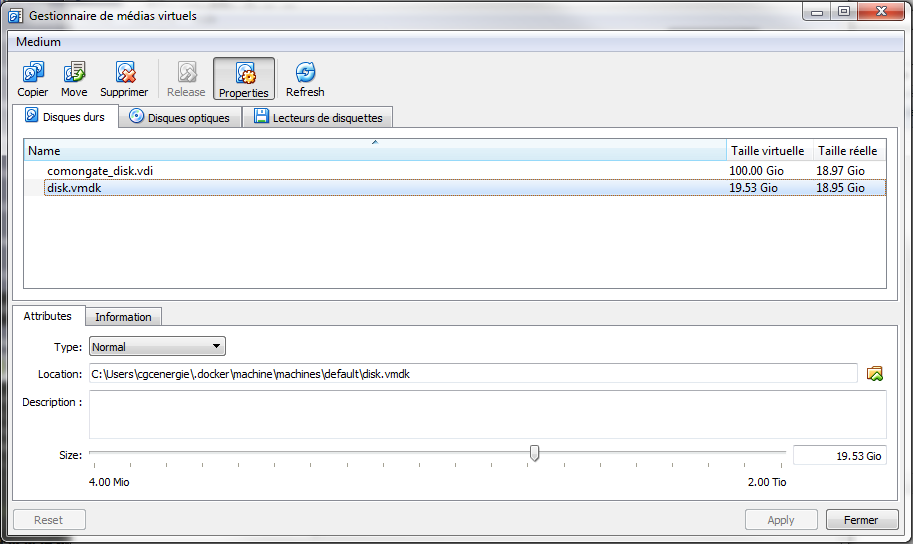
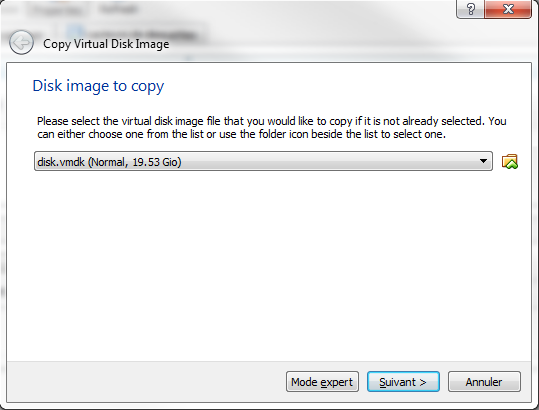
- Select the image to copy
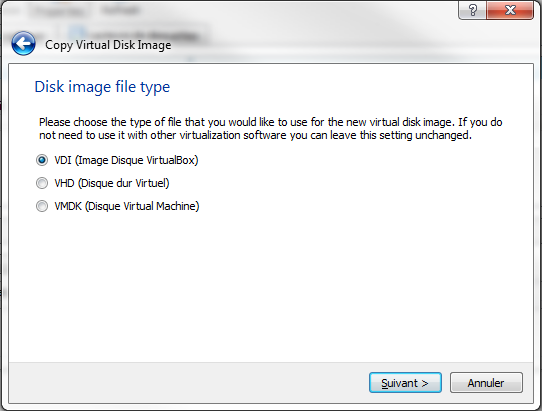
- Select the VDI - VirtualBox Disk Image type
Select dynamic allocation in the next pop-up
- After copy, resize the newly cloned VDI volume to the desired capacity. We recommend at least 64GB.
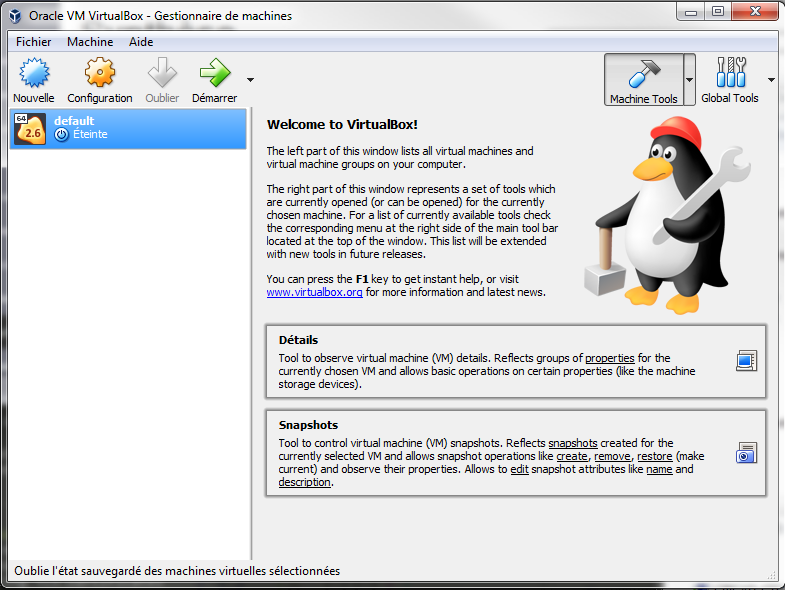
- Select the default virtual machine, then click on the "Settings" gear on top.
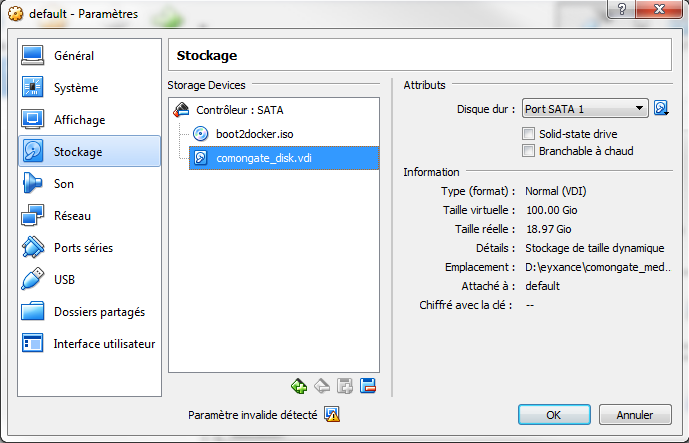
- In storage, add the cloned VDI volume via the "Add" option on SATA. If your are running Docker on a laptop with a solid-state hard drive, please make sure the "Solid-state Drive" option is selected for the cloned VDI volume.
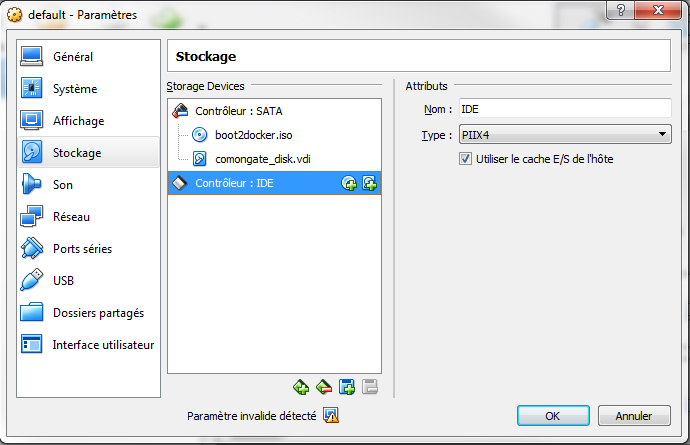
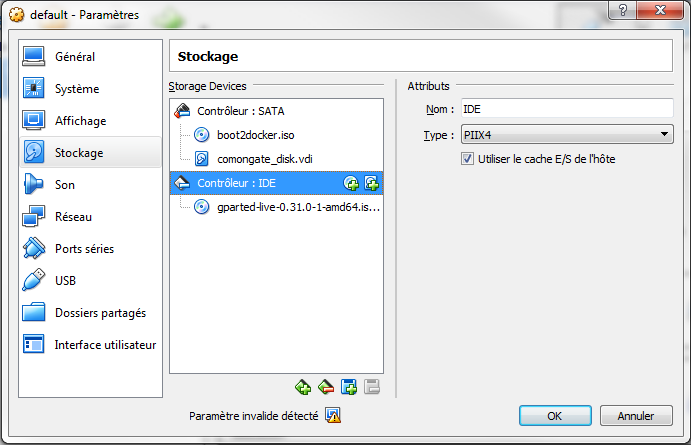
- Add a new IDE controller
- Mount the GParted ISO via the "Add CD/DVD Device" option.
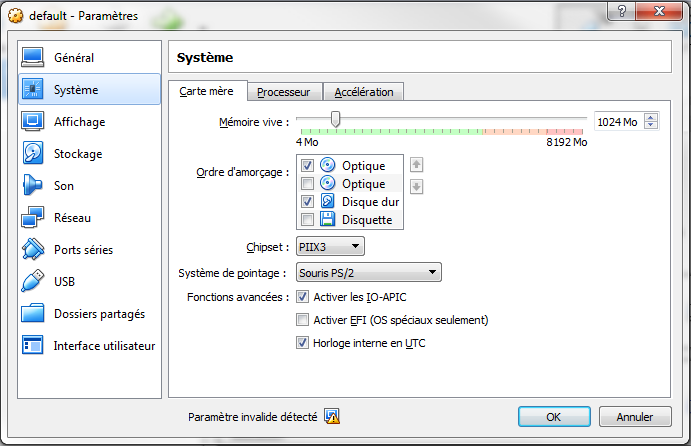
- Click on "System" icon to review the boot order for GParted first.
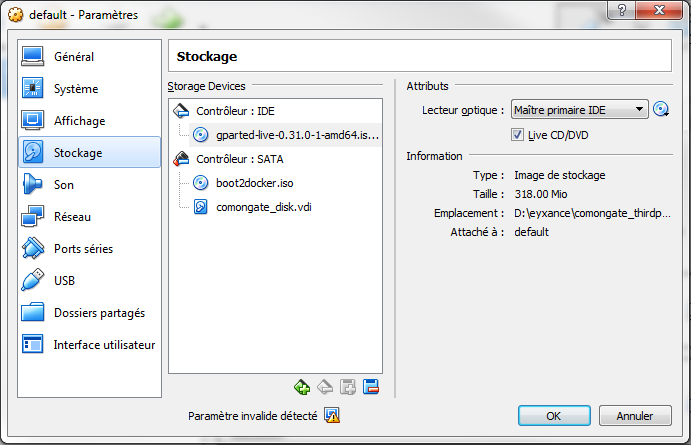
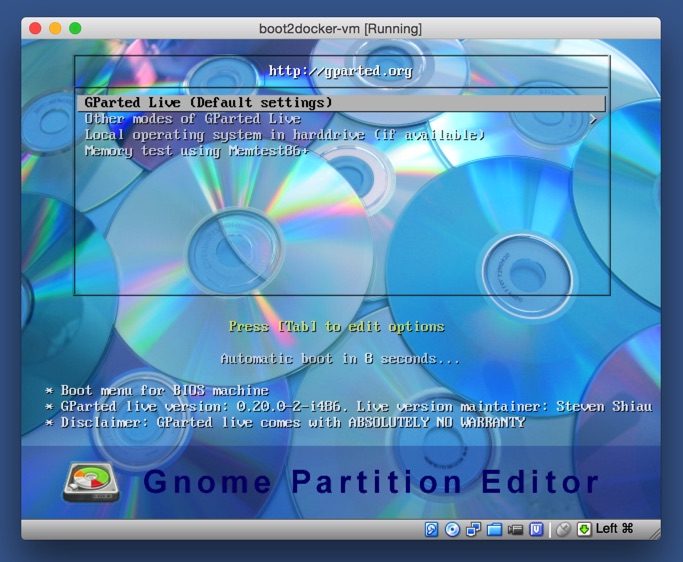
- Click on the "Start" icon to boot up the Boot2Docker virtual machine, which will launch the GParted ISO. Select "GParted Live (Default settings)".
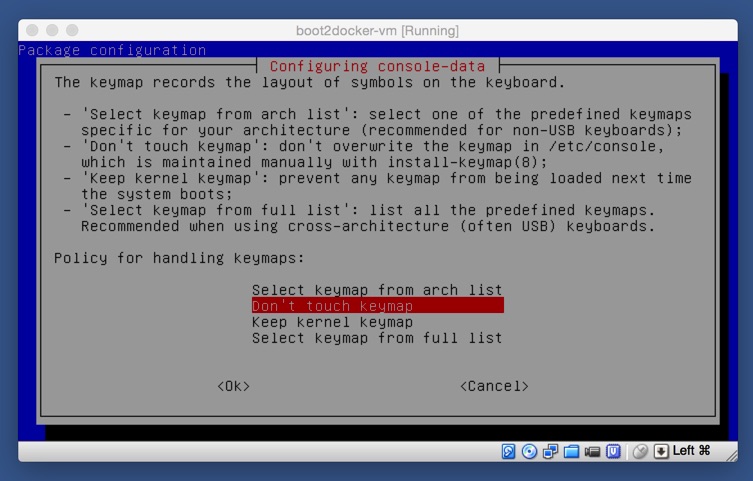
- Set the policy for handling keymaps
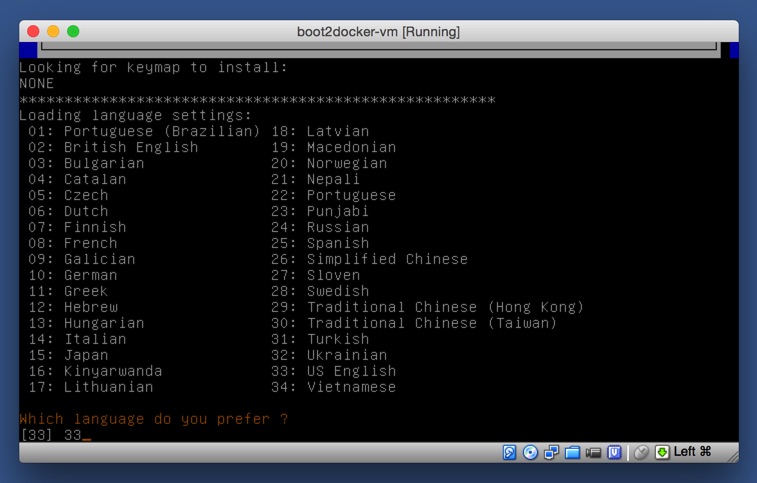
- Set language preference
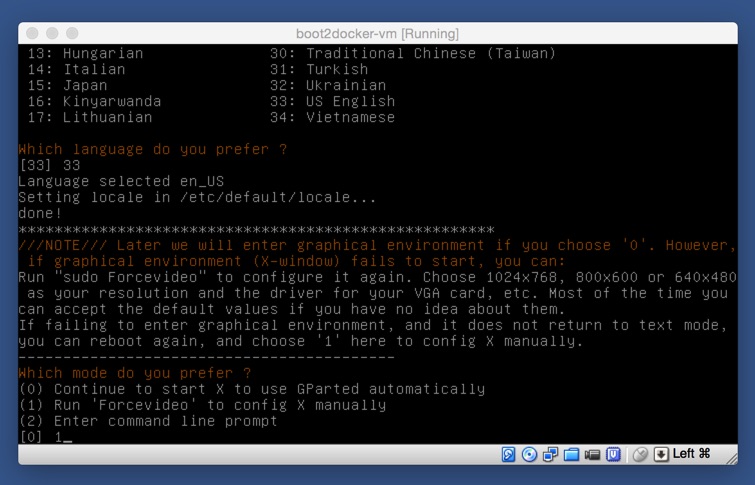
- Select 0
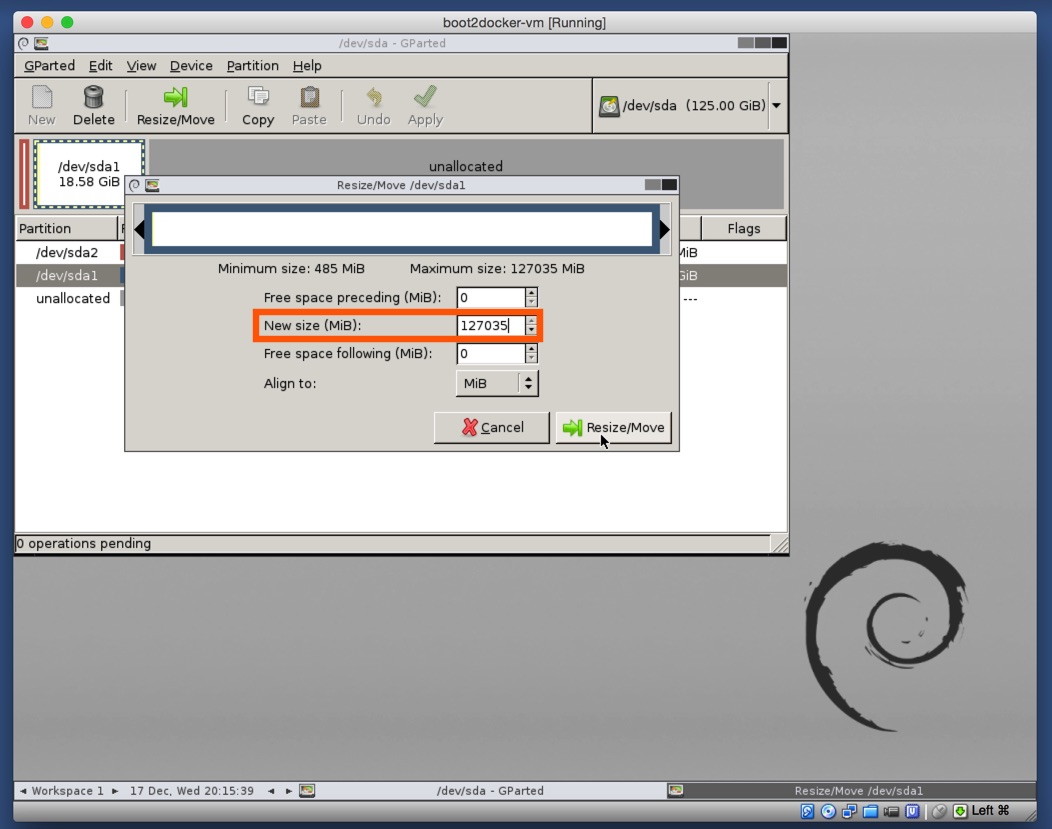
- Once GParted launches, click on the "Resize/Move" icon.
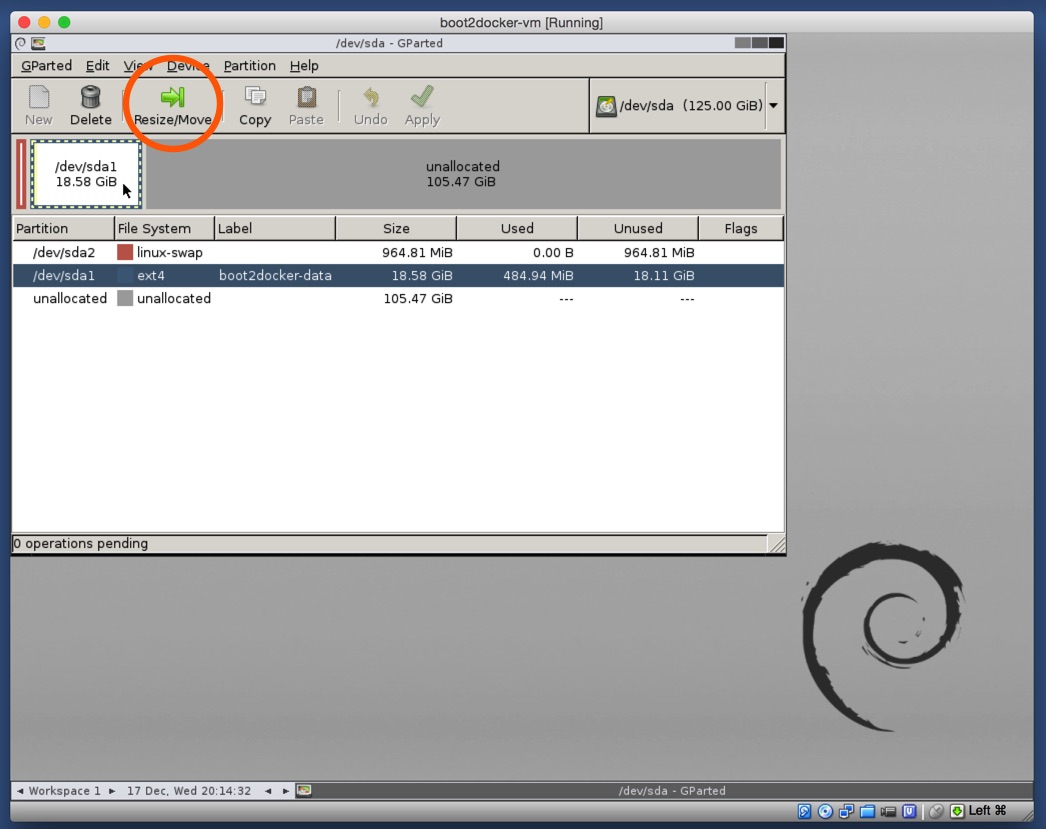
- Set the new disk volume size to the maximum. Click on the "Resize/Move" button to start the process.
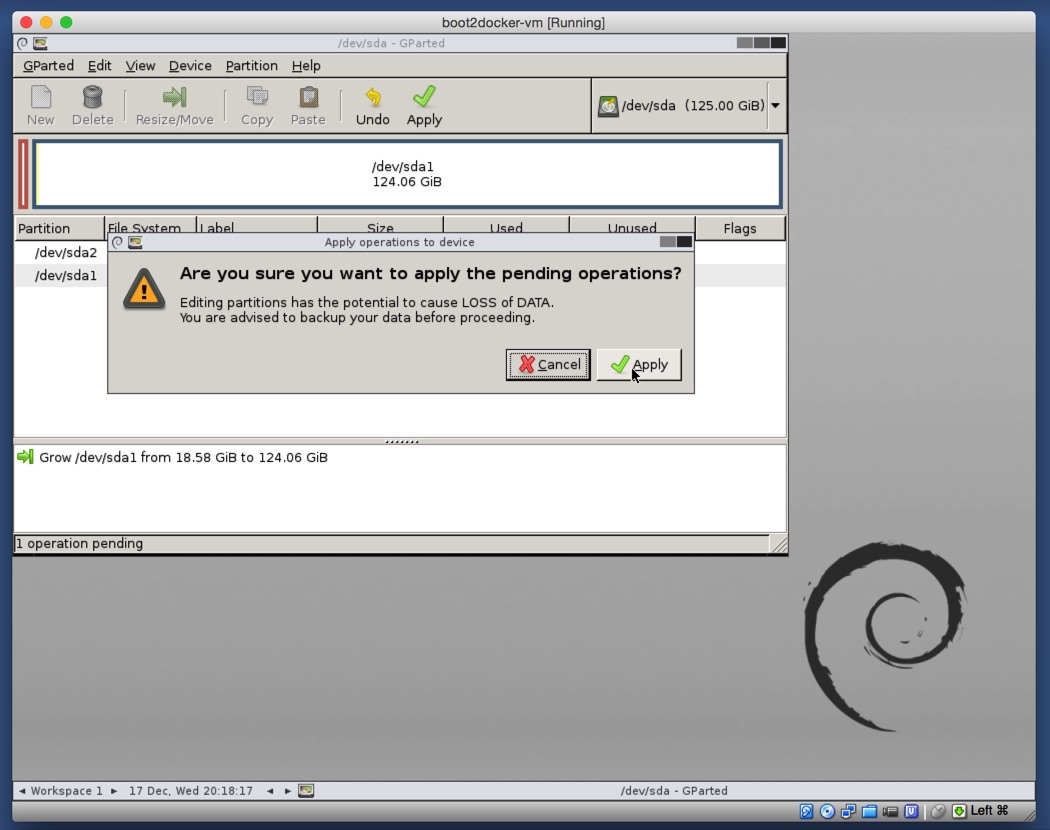
- Confirm the resizing operation by clicking on the "Apply" button.
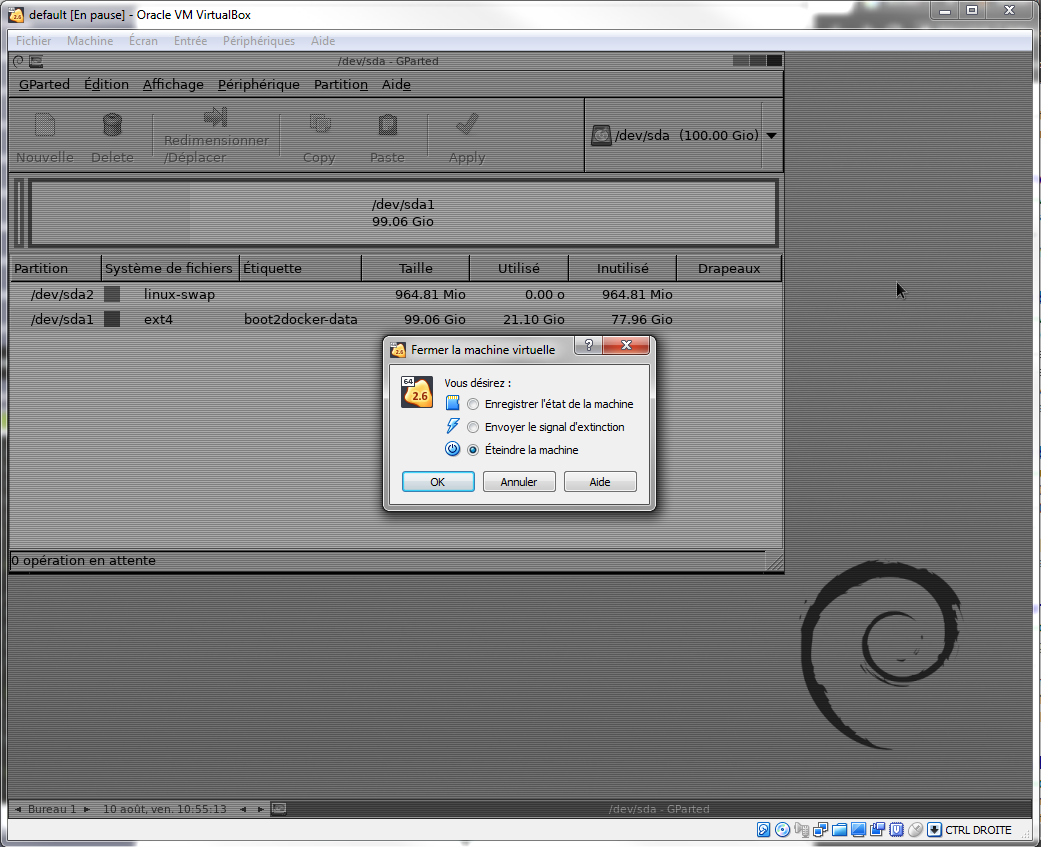
- Power off the machine after the resizing operation finishes.
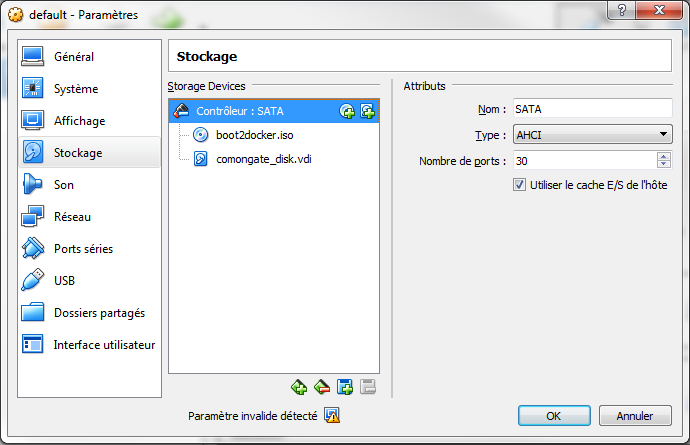
- Remove the GParted ISO
- Now Boot2Docker virtual machine is ready with the new volume size.