# Launch Google Chrome in Kiosk mode
More and more applications are available in Web format for users. A Chrome function enable the application in full screen mode, a good functionality for operator supervisor.
# Configure Kiosk mode
- Create a Chrome shortcut on the desktop
- Right click follow by Properties
- Add arguments to target field: -kiosk http_vers_application
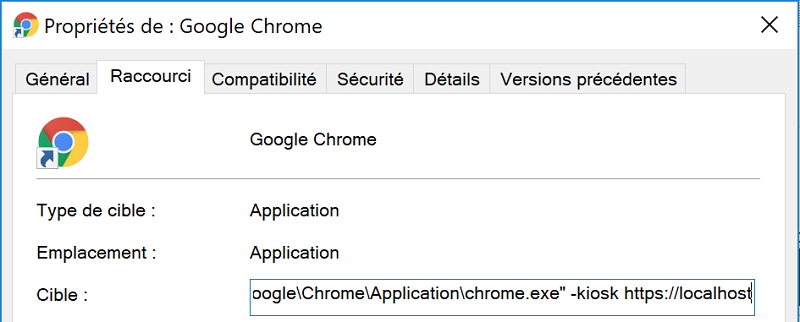
- Validate by OK or Appliquer
Kiosk mode is available by clicking on the new desktop icon.
# Bonus: Icon Customization
- Right click follow by Properties on icon
- Push Change icon
- Replace path to chrome.exe by path to your application
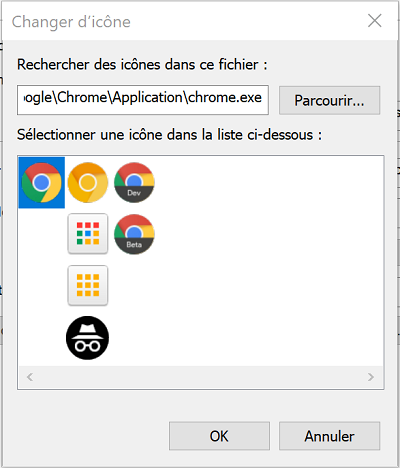
- One click on the lower window make appear available icons.
- Select the icon of your choice and validate
# Launch at Windows session startup
- The custom icon must be copied in the folder Startup of Start menu.
Windows 10 Startup path: C:\Users\<User>\AppData\Roaming\Microsoft\Windows\Start Menu\Programs\Startup
Now, the application is starting in kiosk mode at session opening.